You set up a professional email address, sent your first enquiry to a potential client, and... nothing. No reply. Days later you find out your email was sitting in their spam folder the entire time.
This is one of the most common — and most frustrating — problems for small business owners using hosting email. Your [email protected] address looks professional, but if your emails never reach the inbox, it's worse than using Gmail.
The good news: email deliverability isn't magic. It comes down to a handful of technical settings that you can check and fix in minutes. This guide explains why your emails end up in spam and exactly what to do about it.
How Email Filtering Actually Works
When you send an email, it doesn't go directly to the recipient's inbox. It passes through a series of automated checks run by the recipient's email provider — Gmail, Outlook, Yahoo, or any other service.
These checks answer three questions:
- Is this sender who they claim to be? (authentication)
- Does this sender have a good reputation? (sender reputation)
- Does the content look like spam? (content analysis)
Understanding which check you're failing is the key to fixing the problem.
The 5 Most Common Reasons Business Emails Go to Spam
1. Missing or Broken SPF, DKIM, and DMARC Records
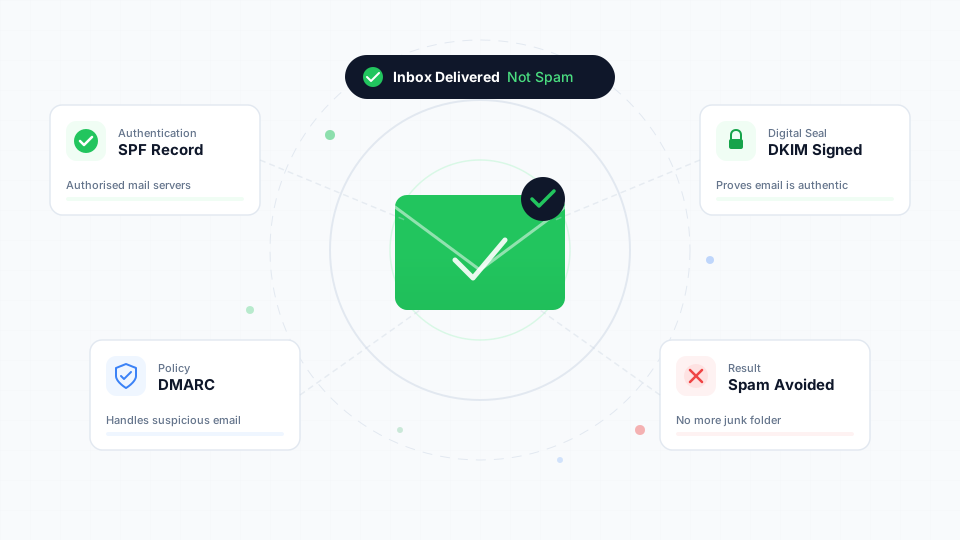
This is the single biggest reason business emails get flagged. These three DNS records are your email's proof of identity.
| Record | What It Does | Without It |
|---|---|---|
| SPF | Lists which servers are allowed to send email for your domain | Providers suspect your email is forged |
| DKIM | Adds a cryptographic signature proving the email wasn't tampered with | Providers can't verify the email is genuine |
| DMARC | Tells providers what to do when SPF or DKIM fails | Providers make their own (often harsh) decision |
How to check
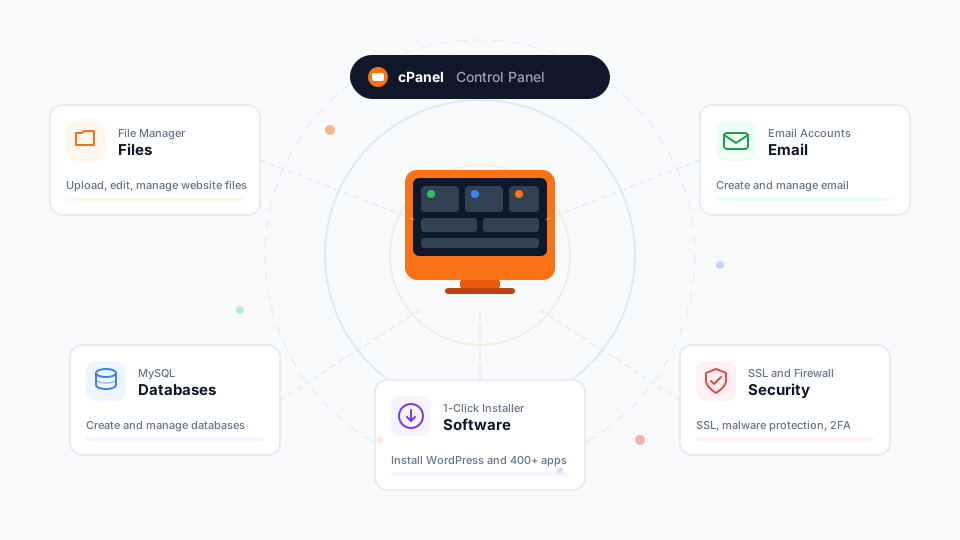
- Log in to cPanel
- Go to Email → Email Deliverability
- Look for your domain's status
Using external DNS like Cloudflare? The automatic repair won't work. You'll need to add the records manually. Our Help Center has a detailed SPF and DKIM troubleshooting guide that walks you through it.
2. Shared Server IP Is Blacklisted
On shared hosting, your emails are sent from a server IP address that's shared with other users. If another user on the same server sends spam — intentionally or because their account was hacked — the entire IP can get blacklisted.
This commonly affects emails to Microsoft addresses (Hotmail, Outlook.com, Live.com). You'll see a bounce-back error like:
550 5.7.1 Unfortunately, messages from [xxx.xxx.xxx.xxx] weren't sent.
Part of their network is on our block list (S3150).
The important thing to know: this is not your fault, and you can't fix it yourself.
What to do
- Submit a support ticket to your hosting provider with the bounce-back error
- The provider will identify and stop the spam source, then request delisting from Microsoft
- Delisting typically takes 24–48 hours
Want to avoid this entirely? A VPS hosting plan gives you a dedicated IP address that only you use. Your sender reputation is entirely in your own hands.
3. Sending Through the Wrong Server
A surprisingly common mistake: using Gmail's "Send mail as" feature to send from your business email address.
Here's what happens:
- You configure Gmail to send emails as
[email protected] - Gmail sends the email from Google's servers
- The recipient's provider checks SPF — which lists your hosting server, not Google's
- SPF fails → the email looks fraudulent → spam folder
The fix
Send emails through your hosting's SMTP server directly. Use:
- Webmail (Roundcube) at
yourdomain.com/webmail - An email client (Outlook, Thunderbird) configured with your hosting's SMTP settings
- Your phone's mail app with IMAP/SMTP
4. Poor Email Content Practices
Even with perfect authentication, your email content itself can trigger spam filters. Modern filters use machine learning to detect patterns common in spam. Watch out for:
Subject line red flags:
- ALL CAPS: "URGENT QUOTATION ATTACHED"
- Excessive punctuation: "Don't miss this!!!"
- Spam trigger words: "Free", "Act now", "Limited time", "Click here"
Email body issues:
- Large images with very little text
- Too many links (especially shortened URLs like bit.ly)
- Attachments from a brand-new email address (no sending history)
- Mismatched "From" name and email address
Formatting problems:
- HTML email with broken or messy code
- Emails copied from Word or a design tool with hidden formatting
- Very large attachments (>10 MB)
Best practices
- Write naturally — if it reads like a real person wrote it, filters will treat it that way
- Keep your first few emails short and text-based to build sending history
- Use PDF attachments for quotations and invoices rather than embedded images
- Include a proper email signature with your name, business, and contact details
5. No Sending History (New Domain/Account)
When you create a new email account on a recently registered domain, you have zero sender reputation. Email providers don't know if you're a legitimate business or a spammer.
This is like being a new driver with no record — providers are cautious and may filter your first emails more aggressively.
How to build reputation
- Start slow — send a few emails per day, not dozens
- Send to people who expect your email — clients you've spoken to, contacts who gave you their address
- Encourage replies — two-way conversations signal legitimacy
- Avoid bulk sends — don't send marketing blasts from your hosting email; use a dedicated service like Mailchimp or Brevo instead
- Be patient — reputation builds over 2–4 weeks of consistent, legitimate use
How to Test Your Email Deliverability
Don't guess whether your emails are working. Test them:
Quick Test: Send to Gmail
- Send an email to a Gmail account you control
- Open the email in Gmail
- Click the three dots (⋮) → Show original
- Look for these results:
SPF:    PASS
DKIM:   PASS
DMARC:  PASS
If any show FAIL, you've found the problem.
Comprehensive Test: Mail-Tester
- Go to mail-tester.com
- Copy the temporary email address shown
- Send a normal email to that address from your business email
- Click "Then check your score"
Ongoing Monitoring
If you use cPanel, check Email → Email Deliverability periodically to ensure your authentication records are still valid. DNS changes, domain transfers, or nameserver updates can sometimes break SPF and DKIM without you realising.
What to Do When Someone Says "Your Email Went to Spam"
When a client or contact tells you your email landed in their spam folder, here's a quick action plan:
On your end
- Check cPanel → Email Deliverability — fix any authentication issues
- Review the bounce-back (if any) — the error code tells you exactly what failed
- Ask the recipient which email provider they use (Gmail, Outlook, Yahoo) — the fix may differ
Ask the recipient to do
- Move your email to their inbox — this trains their spam filter
- Mark it as "Not Spam" — explicitly tells the provider to trust your address
- Add you to their contacts — emails from contacts are almost never filtered
For detailed instructions on whitelisting, share our Help Center guide: How to Whitelist an Email Address
Incoming Spam: Emails You Receive Going to Spam (Or Not)
The reverse problem also happens — legitimate emails from your clients end up in your spam folder, or too much spam gets through to your inbox.
Too much spam reaching your inbox
Your hosting includes SpamAssassin, a spam filter that scores every incoming email. If too much spam is getting through:
- Log in to cPanel → Spam Filters
- Lower the spam threshold score from the default 5 to 3 or 4
- This catches more spam but may occasionally flag legitimate emails
Legitimate emails going to your spam folder
If important emails from trusted senders are being flagged:
- Whitelist the sender in SpamAssassin settings
- Raise the spam threshold from 5 to 7 or 8 in spam filter settings
- Add the sender to your Roundcube contacts for account-level trust
Quick Reference: Email Deliverability Checklist
Use this checklist to ensure your business email is fully configured for maximum deliverability:
- [ ] SPF record is valid (cPanel → Email Deliverability → ✅)
- [ ] DKIM record is valid (cPanel → Email Deliverability → ✅)
- [ ] DMARC record is published (optional but recommended)
- [ ] Sending through hosting SMTP — not via Gmail's "Send mail as"
- [ ] Password is strong — prevents account compromise and IP blacklisting
- [ ] Email signature includes name, business name, and contact details
- [ ] Test email score is 8+ on mail-tester.com
- [ ] Not sending bulk marketing from hosting email — use Mailchimp/Brevo instead
Wrapping Up
Email deliverability isn't complicated — but it is unforgiving. A missing SPF record, a blacklisted server IP, or sending through the wrong server can silently kill your business communication. The worst part is you might not even know it's happening until a client says "I never got your email."
The fix is straightforward:
- Verify your authentication records in cPanel — this alone solves most problems
- Send through your hosting server, not through Gmail or other third-party interfaces
- Build your sender reputation gradually with genuine, one-to-one emails
- Test regularly using Gmail's "Show original" or mail-tester.com
New to business email? Start with our guide on how to set up a professional business email with your own domain.