Imagine logging into your website tomorrow morning and finding it completely gone. Your pages, your blog posts, your customer data, your product listings — all wiped out. No error message, no warning, just a blank screen.
It sounds dramatic, but it happens more often than you'd think. A bad plugin update, a hacking incident, an accidental file deletion, or even a hosting migration gone wrong can destroy months — or years — of work in seconds.
The fix? A reliable backup strategy. And the best part: it takes less than 10 minutes to set up.
What Is a Website Backup?
A website backup is a complete copy of everything that makes your website work. Think of it as a snapshot of your entire site at a specific moment in time — one you can restore from if anything goes wrong.
A full backup typically includes:
| Component | What It Contains |
|---|---|
| Website files | HTML, CSS, JavaScript, images, PDFs — everything in your hosting directory |
| Databases | Your content, user accounts, settings, orders — the dynamic data behind your site |
| Email accounts | Mailboxes, filters, forwarders, and autoresponders |
| Configuration | SSL certificates, cron jobs, DNS records, server settings |
Why Backups Are Non-Negotiable
1. Human Error Is the #1 Cause of Data Loss
You don't need a catastrophic server failure to lose your website. The most common causes of data loss are surprisingly mundane:
- Accidentally deleting the wrong file or folder
- Editing a configuration file incorrectly
- Running a database query that overwrites data
- Dragging and dropping files to the wrong directory in cPanel
2. Plugin and Theme Updates Break Sites
If you run WordPress (and most Malaysian business websites do), you've probably experienced the anxiety of clicking "Update" on a plugin or theme. Most updates are fine — but when one goes wrong, it can:
- Cause the white screen of death (WSOD)
- Break your page layouts
- Create database conflicts that corrupt your content
- Disable critical functionality like WooCommerce checkout
3. Hacking and Malware
Malaysian websites are not immune to cyberattacks. WordPress sites, in particular, are frequent targets because of their popularity. Common attacks include:
- Malware injection — malicious code inserted into your theme or plugin files
- SEO spam — hidden links to gambling or pharmaceutical sites injected into your pages
- Ransomware — your site is locked and held for payment
- Defacement — your homepage replaced with an attacker's message
4. Hosting Migrations and Server Issues
Moving your website to a new hosting provider — or even upgrading your hosting plan — involves transferring files and databases between servers. If something goes wrong during the transfer, having your own independent backup means you're never reliant on someone else's process working perfectly.
5. Legal and Compliance Requirements
For Malaysian businesses, certain industries require data retention policies. Even if your industry doesn't mandate it, having historical backups protects you in disputes — you can prove what was on your website at any given time.
Backup Methods: Which One Is Right for You?
There are three main approaches to backing up your website. The best strategy uses a combination of all three.
Method 1: cPanel Full Backup (Manual)
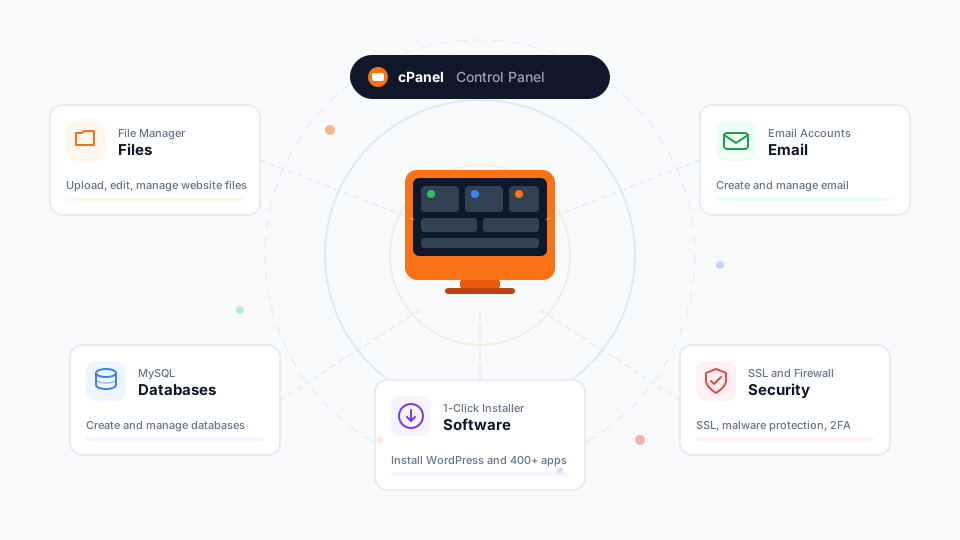
If your hosting includes cPanel (all Cynet plans do), you can generate a full backup of your entire hosting account directly from the control panel.
What it includes: Everything — website files, databases, email accounts, DNS records, and cPanel settings.
How it works:
- Log in to cPanel
- Go to Files → Backup
- Click Download a Full Account Backup
- Select Home Directory as the destination
- Click Generate Backup
The backup file is created on your server, and you can download it to your computer or external storage.
Best for: Monthly full backups, pre-update snapshots, migration preparation.
For detailed step-by-step instructions with every setting explained, see our How to Generate a Full Backup in cPanel guide.
Method 2: Automated WordPress Backups
If you run WordPress, dedicated backup plugins can automate the entire process and store copies in the cloud — so even if your server fails, your backup is safe somewhere else.
Recommended plugins:
| Plugin | Free Tier | Cloud Storage | Scheduling |
|---|---|---|---|
| UpdraftPlus | Yes | Google Drive, Dropbox, S3 | Daily, weekly, monthly |
| BlogVault | No (paid) | BlogVault cloud | Real-time |
| WP Toolkit | Included on WordPress Hosting plans | Server-side | Configurable |
- Install UpdraftPlus from Plugins → Add New in WordPress
- Go to Settings → UpdraftPlus Backups
- Click the Settings tab
- Set file backup schedule to Weekly and database backup to Daily
- Choose a remote storage destination (Google Drive is a good free option)
- Authenticate with your cloud account
- Click Save Changes
Best for: WordPress sites that need automated, hands-off backup protection.
Method 3: Hosting Provider Backups
Many hosting providers — including Cynet — run their own backup systems at the server level. These are typically daily snapshots of your entire account.
Important: Provider backups are a safety net, not a replacement for your own backups. Here's why:
- You may not have direct control over the backup schedule
- Retention periods vary (Cynet keeps daily backups, but older ones are rotated out)
- Restoring from provider backups may require a support request
- If you cancel your hosting, provider backups are deleted
The 3-2-1 Backup Rule
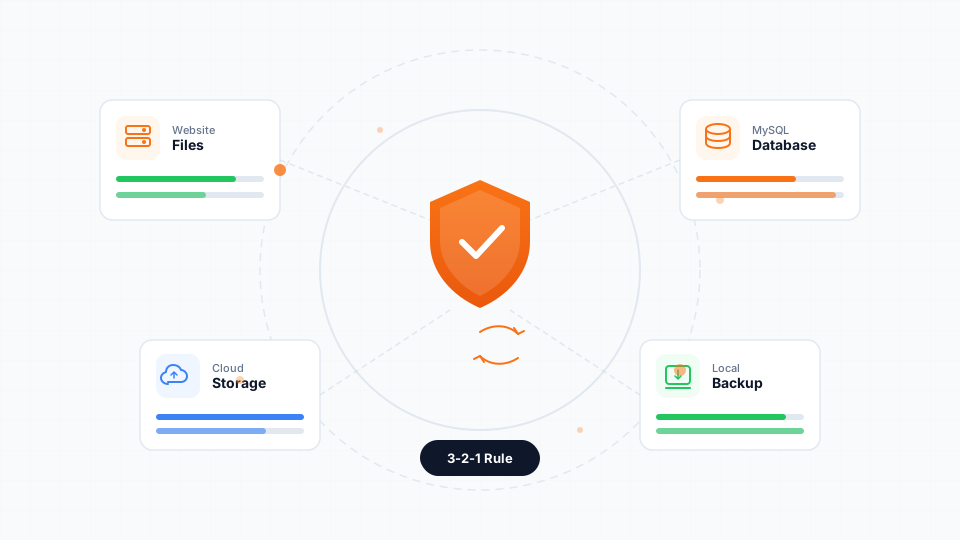
Security professionals follow the 3-2-1 rule for reliable backups. It's straightforward and effective:
- 3 copies of your data (the live site + 2 backups)
- 2 different storage types (e.g., server + cloud)
- 1 copy stored offsite (not on the same server as your website)
| Copy | Location | Method |
|---|---|---|
| Live site | Cynet hosting server | Your actual website |
| Backup 1 | Google Drive or Dropbox | UpdraftPlus automated daily backup |
| Backup 2 | Your computer or external drive | Monthly cPanel full backup download |
How Often Should You Back Up?
The answer depends on how often your website changes:
| Website Type | Recommended Backup Frequency |
|---|---|
| Static business website (rarely updated) | Weekly files, weekly database |
| Blog with regular posts | Weekly files, daily database |
| E-commerce store (WooCommerce) | Daily files, daily database |
| High-traffic site with user submissions | Daily files, real-time database |
Database vs. File Backups
Your backup schedule can (and should) differ for files and databases:
- Files change less frequently — when you upload images, update theme files, or install plugins
- Databases change constantly — every new blog post, customer order, form submission, and settings change is stored in the database
What to Do When You Need to Restore
Having backups is only half the equation. You also need to know how to restore them.
Restoring From cPanel
For partial restores (individual databases or home directory):
- Go to cPanel → Backup
- Under Restore, select the component (Home Directory or MySQL Database)
- Upload your backup file
- Wait for the restore to complete
For full account restores, contact Cynet support — full restorations on shared hosting require administrator access.
Restoring From UpdraftPlus
- Go to Settings → UpdraftPlus Backups in WordPress
- Click the Existing Backups tab
- Find the backup you want to restore
- Click Restore and select which components to restore (plugins, themes, uploads, database, other)
- Confirm and wait for the process to complete
Test Your Backups
This is the step most people skip — and the one that matters most. A backup is worthless if it can't be restored.
At least once every 3 months:
- Download your latest backup
- Open the archive to verify it contains all expected files
- Check that database backup files are not empty (0 KB)
- If possible, test a restore on a staging environment
Common Backup Mistakes
1. Storing Backups Only on the Same Server
If your backups live on the same server as your website, a server failure destroys both your site and your backups simultaneously. Always store at least one copy offsite.
2. Never Testing Restores
A backup you've never tested is a backup you can't trust. Schedule quarterly restore tests — it takes 15 minutes and could save your business.
3. Backing Up Files but Not the Database
Your WordPress posts, pages, WooCommerce orders, and settings live in the database — not in files. If you only back up your public_html folder, you'll lose all your content.
4. Setting It Up and Forgetting It Forever
Backup plugins need maintenance too. Check quarterly that:
- The plugin is still active and updated
- Cloud storage hasn't run out of space
- Backup emails are still being received
- Old backups are being cleaned up
5. Not Backing Up Before Major Changes
Before you click "Update All" on your WordPress plugins, take a manual backup. The 60 seconds it takes could save you hours of troubleshooting.
Backup Checklist for Malaysian Business Owners
Here's your action plan — complete it today:
- Log in to cPanel and create a full backup right now
- Download the backup to your computer — don't leave it only on the server
- Install a backup plugin (UpdraftPlus for WordPress) and configure weekly automated backups
- Connect cloud storage (Google Drive is free for up to 15 GB) as your offsite backup destination
- Set a calendar reminder to test your backup restoration every 3 months
- Back up before every update — make it a habit, not an afterthought
Wrapping Up
Website backups are like insurance — boring to set up, easy to ignore, and absolutely priceless when you need them. The businesses that recover fastest from disasters aren't the ones with the best hosting or the most expensive security tools. They're the ones with a recent, tested, offsite backup ready to go.
Every Cynet hosting plan includes daily server-side backups, free SSL, and cPanel access with built-in backup tools. But don't stop there — set up your own backup strategy using the methods in this guide, because the best protection is the kind you control.
Your website represents hours, weeks, or years of work. Protect it.