If you've just signed up for a web hosting plan, you've probably seen the word "cPanel" mentioned everywhere — in your welcome email, on your hosting provider's website, and in every tutorial you've tried to follow.
But what actually is cPanel? What does it do? And how do you use it without breaking anything?
This guide explains everything in plain language. No technical background required.
What Is cPanel?
cPanel is a web-based control panel that lets you manage your hosting account through a visual dashboard instead of typing server commands.
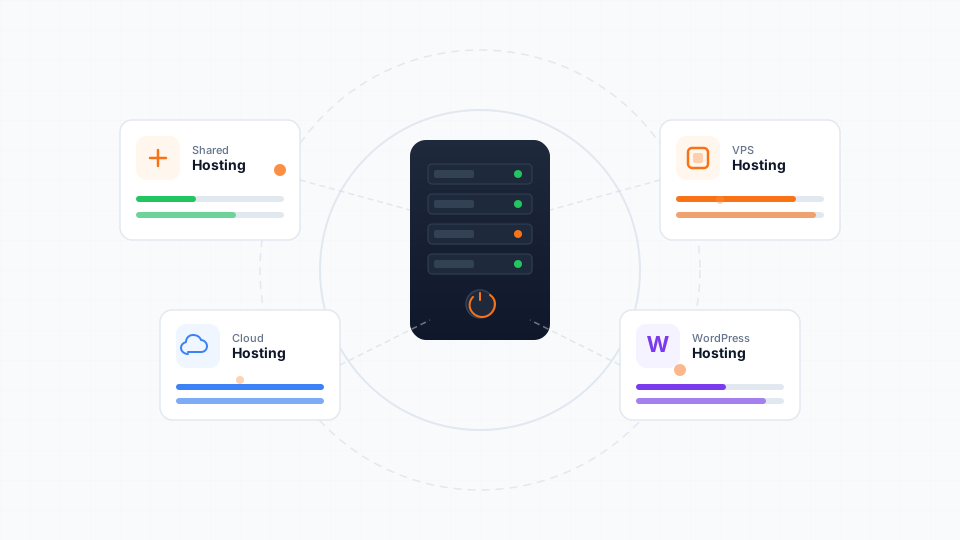
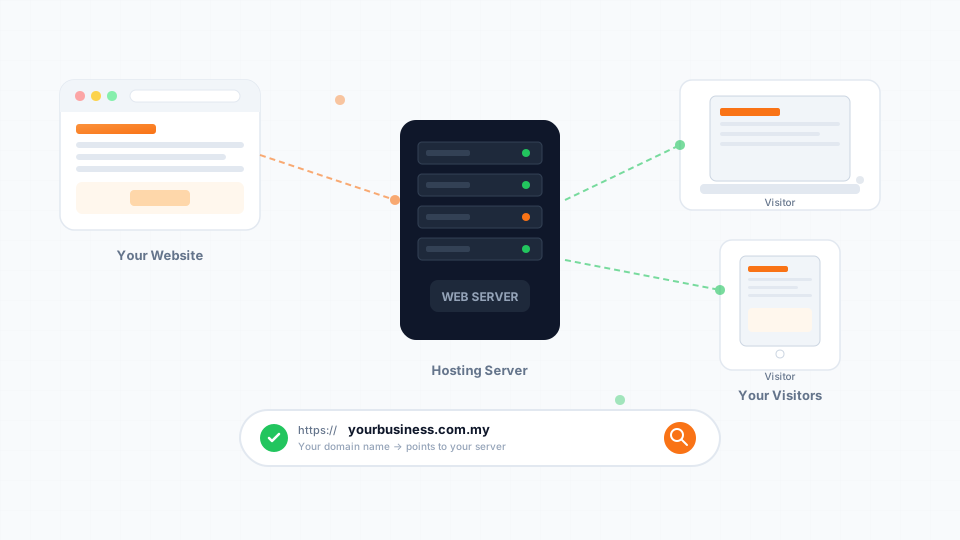
Think of it like this: your hosting account is a computer sitting in a data centre somewhere. You can't physically walk up to it and plug in a keyboard. Instead, cPanel gives you a point-and-click interface — accessible from any browser — to do everything you'd need to do on that server.
It's the industry standard. The vast majority of shared hosting, WordPress hosting, and business hosting providers worldwide use cPanel, including all Cynet hosting plans.
What Can You Do With cPanel?
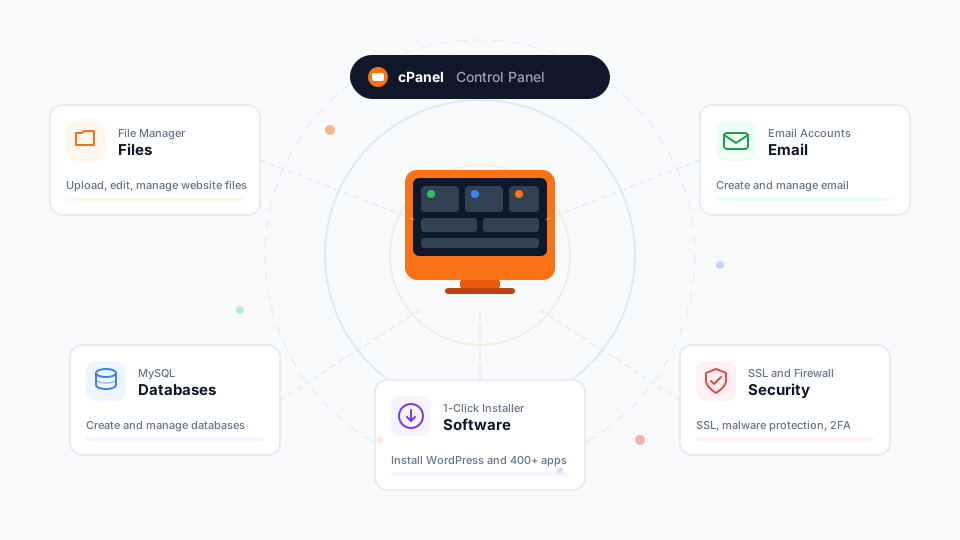
Almost everything related to running a website. Here's what the main sections look like:
Files — Your Website's Storage
This is where your website's actual files live. Think of it as the hard drive for your hosting account.
| Tool | What It Does |
|---|---|
| File Manager | Upload, edit, move, and delete files directly in your browser — no extra software needed |
| Backup | Download a complete copy of your hosting account (files, databases, emails) |
| FTP Accounts | Create login credentials for FTP programs like FileZilla, useful for uploading large numbers of files |
| Disk Usage | See exactly what's using your storage space |
Need to generate a full backup? Our Help Center has a step-by-step backup guide.
Email — Professional Business Communication
cPanel includes a complete email hosting system. Every email account on your domain is created and managed here.
| Tool | What It Does |
|---|---|
| Email Accounts | Create addresses like [email protected], set passwords, manage storage quotas |
| Webmail | Read and send email directly in your browser (Roundcube) |
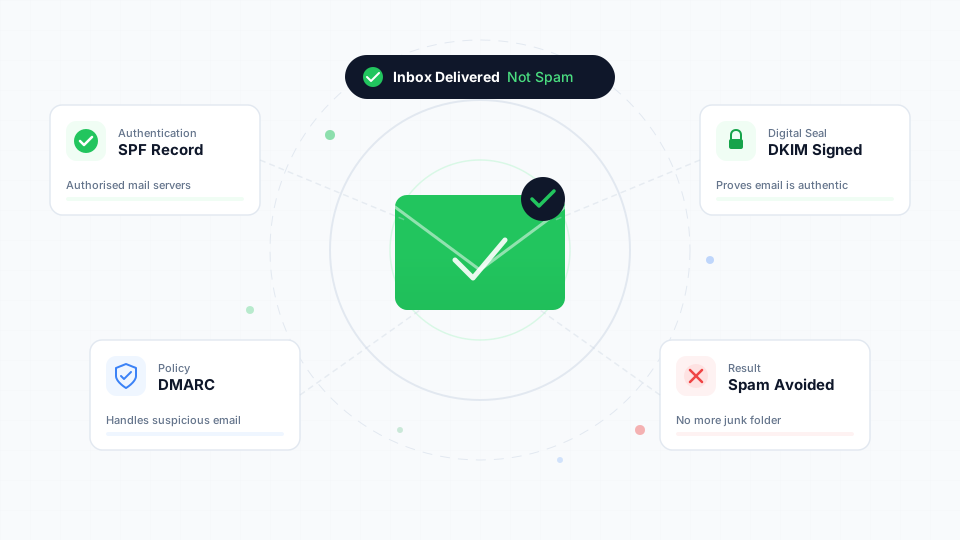
| Email Deliverability | Check that your SPF and DKIM records are correct so emails don't land in spam |
| Forwarders | Automatically forward emails from one address to another |
| Spam Filters | Adjust SpamAssassin sensitivity to control how aggressively spam is filtered |
Already set up your email? Learn how to adjust your spam filter sensitivity or whitelist trusted senders to make sure important emails reach your inbox.
Databases — Your Website's Brain
If your website runs on WordPress, Joomla, WooCommerce, or any dynamic platform, it stores all its content — pages, posts, products, user accounts — in a database. cPanel gives you tools to create and manage these databases.
| Tool | What It Does |
|---|---|
| MySQL Databases | Create databases and database users, assign permissions |
| phpMyAdmin | View, edit, and repair database tables through a visual interface |
| MySQL Wizard | A guided, step-by-step database setup (great for beginners) |
Learn how to create a MySQL database in cPanel with our Help Center guide.
Domains — Managing Your Web Addresses
Control which domains and subdomains point to your hosting, and how URLs behave.
| Tool | What It Does |
|---|---|
| Domains | Add, remove, or manage domains hosted on your account |
| Subdomains | Create addresses like blog.yourdomain.com or shop.yourdomain.com |
| Redirects | Set up URL redirects (e.g., redirect old pages to new ones) |
| Zone Editor | Edit DNS records (A, CNAME, MX, TXT) for advanced domain configuration |
Software — Installing and Configuring Applications
This is where you install WordPress and hundreds of other applications — usually with a single click.
| Tool | What It Does |
|---|---|
| Softaculous | One-click installer for 400+ apps (WordPress, Joomla, OpenCart, Laravel, and more) |
| WordPress Toolkit | Manage WordPress installations — updates, staging, cloning, security hardening |
| MultiPHP Manager | Change the PHP version for each domain (important for compatibility and performance) |
Running into PHP compatibility issues? Learn how to change your PHP version in cPanel.
Security — Protecting Your Account
Keep your hosting account, website, and visitors safe.
| Tool | What It Does |
|---|---|
| SSL/TLS | Manage SSL certificates for HTTPS encryption |
| AutoSSL | Automatically installs and renews free SSL certificates |
| IP Blocker | Block suspicious IP addresses from accessing your site |
| Two-Factor Authentication | Add an extra login step to protect your cPanel account |
| Imunify360 | Real-time malware scanning and firewall (included on Cynet hosting) |
Every website needs SSL. Learn why SSL certificates matter and how to enable yours.
How to Access cPanel
There are two ways to log in:
Method 1: Through Your Hosting Provider's Client Area (Easiest)
- Log in to manage.cynet.com.my
- Go to My Services → Web Hosting
- Click Manage on your hosting plan
- Click the cPanel Login button
Method 2: Direct Login
- Open your browser and go to
yourdomain.com/cpanel - Enter the username and password from your hosting welcome email
- Click Log In
Can't remember your credentials? Your cPanel username and password were sent in the welcome email when your hosting was activated. Check your inbox (and spam folder) for a subject line like "New Account Information". You can also reset your cPanel password anytime.For the complete walkthrough, see our Help Center guide on how to log in to cPanel.
Your First 15 Minutes in cPanel
Just got access? Here's what to do first — in order:
1. Look Around (Don't Touch Anything Yet)
Seriously. Spend two minutes scrolling through the cPanel dashboard to see what's there. The icons are grouped into sections (Files, Email, Databases, Domains, etc.). You don't need to memorise everything — just know that the sections exist.
2. Install WordPress (or Your Preferred Platform)
If you're building a website, start here:
- Find Softaculous Apps Installer in the Software section
- Click WordPress → Install
- Choose your domain, set an admin username and password
- Click Install — done in 60 seconds
3. Create Your Business Email
- Go to Email → Email Accounts → Create
- Type the address you want (e.g.,
hello,info, or your name) - Set a strong password
- Click Create
yourdomain.com/webmail.
Want the full email setup walkthrough? Read our guide on setting up a professional business email.
4. Check Email Deliverability
- Go to Email → Email Deliverability
- If your domain shows Valid ✅ — you're good
- If it shows Problems Exist ⚠️ — click Repair to fix SPF and DKIM automatically
5. Verify SSL Is Active
- Go to Security → SSL/TLS Status
- Your domain should show a green padlock or "AutoSSL Domain Validated"
- If not, click Run AutoSSL and wait a few minutes
https://.
cPanel vs. Other Control Panels
cPanel isn't the only hosting control panel, but it's the most widely used. Here's how it compares:
| Feature | cPanel | Plesk | DirectAdmin | Custom Panels |
|---|---|---|---|---|
| Market share | Largest | Second largest | Growing | Varies |
| Learning resources | Extensive (thousands of tutorials online) | Good | Limited | Provider-specific |
| Email management | Built-in | Built-in | Built-in | Varies |
| One-click app installs | Yes (Softaculous) | Yes (built-in) | Yes | Varies |
| WordPress tools | WordPress Toolkit | WordPress Toolkit | Basic | Varies |
| Best for | Beginners and SMEs | Developers and agencies | Budget-conscious | Provider lock-in |
Common Beginner Questions
Will I break something if I click the wrong thing?
Unlikely. Most actions in cPanel are reversible or require confirmation before executing. That said, avoid deleting files or databases unless you're sure they're not in use. When in doubt, download a backup first — our backup guide shows you how.
Do I need to use cPanel every day?
No. Most people use cPanel during initial setup (installing WordPress, creating email accounts, checking SSL) and then only occasionally — to update PHP, check disk usage, or download a backup. Once your website is running, you'll spend most of your time in WordPress or your website platform, not in cPanel.
Is cPanel included free with hosting?
On most shared and business hosting plans (including all Cynet plans), yes. VPS hosting sometimes charges extra for a cPanel licence, but Cynet VPS plans include cPanel and WHM at no additional cost.
What's the difference between cPanel and WHM?
cPanel manages a single hosting account (your websites, emails, databases). WHM (Web Host Manager) manages the entire server and is used by hosting providers or VPS owners to create and manage multiple cPanel accounts. Most website owners only need cPanel.
Can I access cPanel from my phone?
Yes. cPanel works in mobile browsers, though the interface is designed for desktop screens. For quick tasks (checking email, reviewing disk usage), it works fine on mobile. For complex tasks, use a laptop or desktop.
Which Hosting Plans Include cPanel?
Every Cynet hosting plan includes cPanel with full access to all the features described in this guide:
| Plan | cPanel Included | Best For |
|---|---|---|
| Business Hosting | Yes | Small businesses running multiple sites |
| WordPress Hosting | Yes + WordPress Toolkit | WordPress-focused sites needing speed |
| Cloud Hosting | Yes | Sites needing high availability |
| VPS Hosting | Yes + WHM | Full server control with cPanel convenience |
Not sure which plan is right for you? Our guide on how to choose the best web hosting breaks down the options.
Wrapping Up
cPanel is the command centre for your hosting account. It's where you manage files, email, databases, domains, security, and software — all from a single dashboard in your browser.
You don't need to be technical to use it. The interface is visual, most actions are reversible, and there are thousands of tutorials available because cPanel is the industry standard.
Here's your quick-start checklist:
- Log in — via your hosting client area or
yourdomain.com/cpanel - Install WordPress — Softaculous → WordPress → Install (60 seconds)
- Create your email — Email Accounts → Create → set your address and password
- Check deliverability — Email Deliverability → ensure SPF and DKIM are valid
- Verify SSL — SSL/TLS Status → confirm your certificate is active