If you're still using a Gmail, Yahoo, or Hotmail address for your business — [email protected] — you're sending the wrong signal to every customer, supplier, and partner who receives your email.
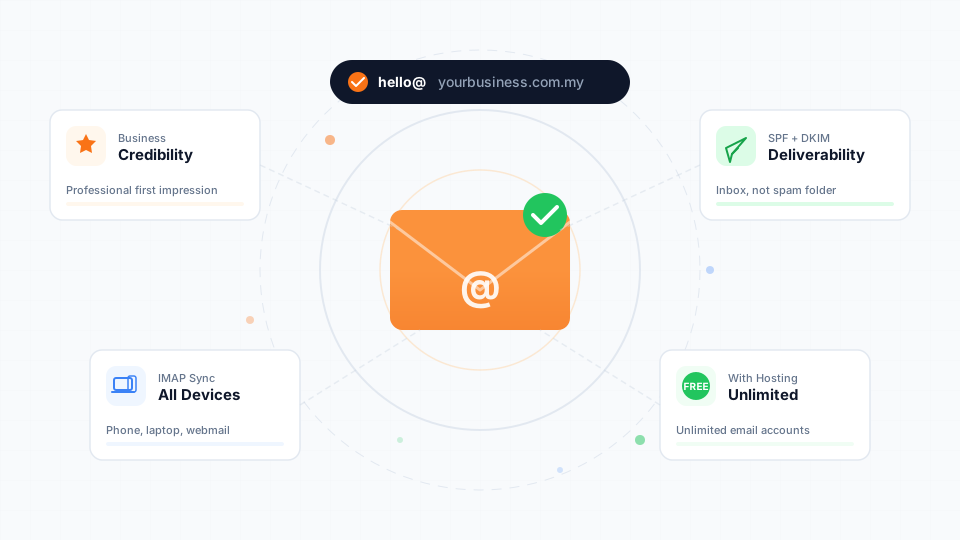
A professional email address like [email protected] costs almost nothing to set up (it's included free with most hosting plans), takes minutes to configure, and immediately makes your business look more credible and established.
This guide walks you through everything you need to know — from why it matters to how to set it up and avoid common mistakes that send your emails straight to spam.
Why a Professional Email Address Matters
First Impressions Are Permanent
When a potential customer receives an email from [email protected], they instinctively wonder: is this a real business? A professional address like [email protected] instantly communicates legitimacy.
This isn't just about vanity. Research consistently shows that businesses using custom domain email addresses are perceived as more trustworthy, more established, and more likely to still be around next year.
Credibility With Banks, Government, and Partners
In Malaysia, this matters even more. When dealing with:
- Banks — applying for business accounts or merchant payment gateways
- Government agencies — submitting tenders or registering with MyCoID
- Corporate clients — responding to RFQs or partnership proposals
- Suppliers — negotiating payment terms or credit lines
Brand Consistency Across Every Touchpoint
Your email address appears on:
- Business cards
- Invoices and quotations
- Website contact pages
- Social media profiles
- Directory listings (Google Business Profile, Yellow Pages)
- WhatsApp Business linked email
@yourbusiness.com.my, you're reinforcing your brand with every interaction. A mismatched Gmail address breaks that consistency.
Security and Control
With a business email on your own domain, you control the accounts:
- Create accounts for team members (
sales@,support@,accounts@) - Remove access instantly when someone leaves the company
- Set up forwarding so enquiries always reach the right person
- Manage passwords centrally through your hosting control panel
What You Need to Get Started
Setting up professional email requires just two things — and you may already have both:
| Requirement | What It Is | Typical Cost |
|---|---|---|
| A domain name | Your web address (e.g., yourbusiness.com.my) | From RM 69/year |
| A hosting plan with email | Server space that includes email hosting | From RM 2.90/month |
Don't have a domain yet? Read our guide on domain name registration to learn how to choose and register the right domain for your business.
How to Set Up Your Business Email
The process takes about 10 minutes. Here's the overview:
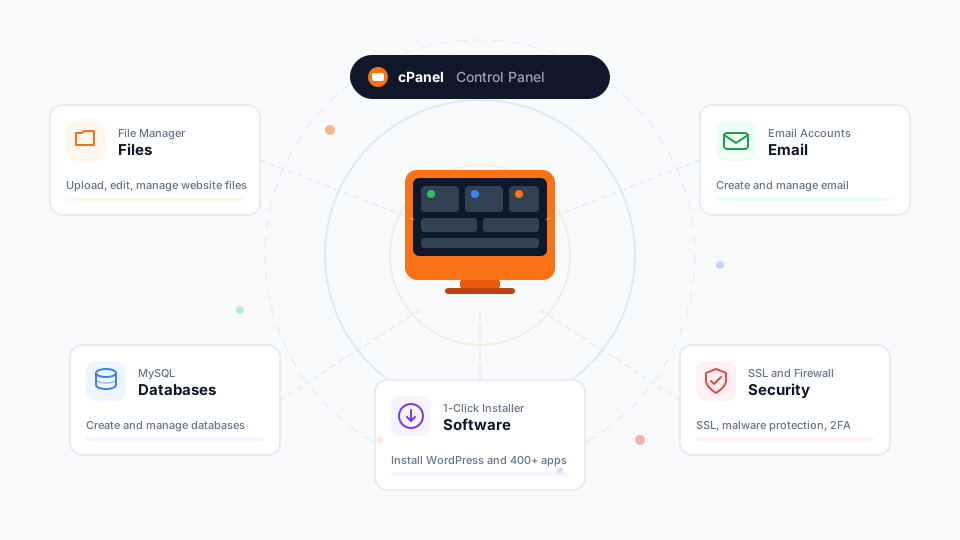
Step 1: Log In to Your Hosting Control Panel
If you're on a cPanel-based host (like Cynet), access your control panel at yourdomain.com/cpanel or through your hosting provider's client area.
Step 2: Create Your Email Account
Navigate to Email → Email Accounts → Create, then:
- Enter the username you want (e.g.,
hello,info,admin) - Select your domain from the dropdown
- Set a strong password
- Click Create
Need detailed steps? Our Help Center has a complete guide to creating email accounts in cPanel with every field explained.
Step 3: Choose How to Access Your Email
You have three options:
Option A: Webmail (Browser-Based)
Go to yourdomain.com/webmail and log in with your new email address and password. This works from any device with a browser — no software installation needed. Roundcube is the recommended webmail client.
Best for: Quick access from any device, checking email on the go.
Option B: Desktop Email Client (Outlook, Thunderbird)
Connect your new email to a desktop application using these settings:
| Setting | Value |
|---|---|
| Incoming server (IMAP) | mail.yourdomain.com |
| IMAP port | 993 (SSL) |
| Outgoing server (SMTP) | mail.yourdomain.com |
| SMTP port | 465 (SSL) |
| Username | Your full email address |
| Authentication | Password |
For step-by-step Outlook configuration, see our Outlook email setup guide.
Option C: Mobile (iPhone or Android)
Add your business email to your phone's built-in mail app using the same IMAP/SMTP settings above. This gives you push notifications and access alongside your personal email.
Best for: Business owners who need to respond to enquiries on the move.
We have dedicated guides for iPhone email setup and Android email setup.
Step 4: Set Up Email Forwarding (Optional)
If you want emails sent to [email protected] to also arrive in your personal Gmail, set up email forwarding in cPanel. This lets you monitor your business email from an existing account while keeping the professional address for outgoing messages.
Our Help Center covers email forwarding setup in detail.
Which Email Addresses Should You Create?
For most small businesses, start with these:
| Address | Purpose |
|---|---|
hello@ or info@ | General enquiries — your public-facing address |
yourname@ | Your personal business email |
support@ | Customer support (if applicable) |
accounts@ or billing@ | Invoices and payment matters |
The Catch-All Option
A catch-all email address receives messages sent to any non-existent address on your domain. For example, if someone mistypes [email protected], a catch-all would still receive it.
Use with caution: Catch-all addresses attract significantly more spam. For most businesses, it's better to create specific addresses and let mistyped ones bounce.
Email Deliverability: Making Sure Your Emails Actually Arrive
Setting up an email account is only half the battle. If your emails land in recipients' spam folders — or get blocked entirely — your professional address loses its value.
Why Emails Get Blocked
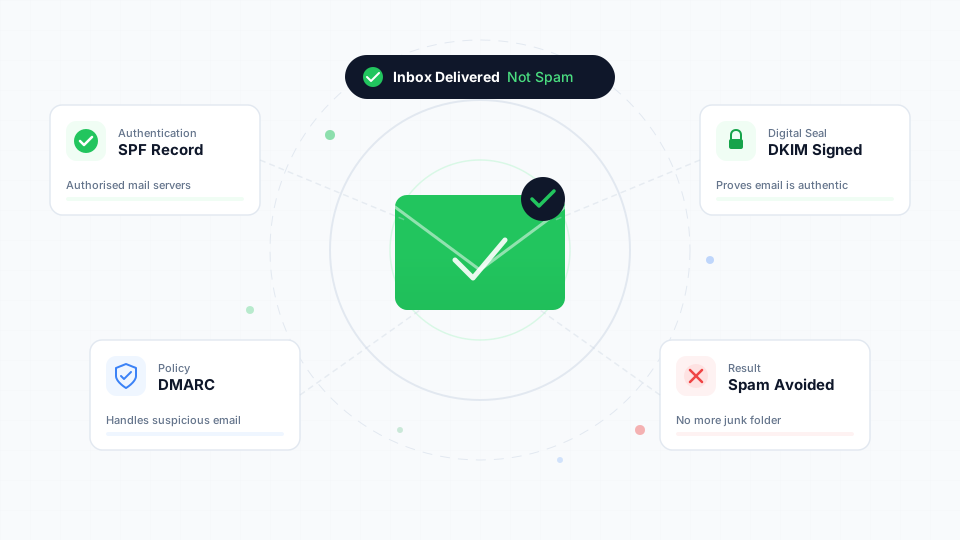
Major email providers (Gmail, Outlook.com, Yahoo) aggressively filter incoming email. They check whether the sending domain has proper authentication records that prove the email is genuinely from who it claims to be.
Without these records, your emails may be:
- Delivered to the spam folder
- Blocked entirely with a bounce-back error
- Flagged with a security warning in the recipient's inbox
The Three Records You Need
| Record | What It Does | Analogy |
|---|---|---|
| SPF | Lists which servers are allowed to send email on behalf of your domain | A guest list — only approved servers get in |
| DKIM | Adds a digital signature to every email, proving it hasn't been tampered with | A wax seal — proves the letter is authentic |
| DMARC | Tells receiving servers what to do if SPF or DKIM checks fail | A policy — instructions for handling suspicious mail |
How to Set Them Up
If your domain uses your hosting provider's nameservers, SPF and DKIM are usually configured automatically. To verify:
- Log in to cPanel
- Go to Email → Email Deliverability
- Check that your domain shows ✅ Valid
- If it shows ⚠️ Problems Exist, click Repair to fix automatically
Testing Your Email
After setup, verify everything works:
- Send a test email to Gmail — open it, click the three dots (⋮) → Show original → check for SPF: PASS, DKIM: PASS
- Send to mail-tester.com — it scores your email out of 10 and flags any issues
- Reply test — send an email and ask the recipient to reply, confirming two-way communication works
Common Mistakes to Avoid
1. Sending From Your Hosting Email Through Gmail's Interface
Many people set up "Send mail as" in Gmail to use their business address. While this works, it often causes deliverability problems because Gmail's servers aren't authorised to send on behalf of your domain. Recipients may see warnings like "sent via gmail.com" or the email may land in spam.
Better approach: Use webmail, a dedicated email client, or configure your email client to send through your hosting's SMTP server directly.
2. Not Setting Up SPF and DKIM
This is the single most common reason business emails get blocked. Gmail's 2024 sender requirements made SPF and DKIM mandatory — not optional. If your emails bounce to Gmail addresses, check your authentication records immediately.
3. Using info@ as Your Only Address
Having only info@ creates a bottleneck. As your business grows, different enquiries need different people. Set up role-based addresses early, even if they all forward to the same person initially.
4. Forgetting to Update Your Email Everywhere
After creating your business email, update it on:
- Google Business Profile
- Social media accounts
- Business card templates
- Invoice and quotation templates
- Domain registrar contact (WHOIS)
- Bank and payment gateway accounts
Free Email vs. Google Workspace vs. Hosting Email
You might wonder whether you should use Google Workspace (formerly G Suite) or Microsoft 365 instead of hosting email. Here's how they compare:
| Feature | Hosting Email (cPanel) | Google Workspace | Microsoft 365 |
|---|---|---|---|
| Cost | Free with hosting | From RM 25/user/month | From RM 25/user/month |
| Storage | Tied to hosting plan | 30 GB per user | 50 GB per user |
| Webmail interface | Roundcube (functional) | Gmail (polished) | Outlook Web (polished) |
| Calendar & Docs | Not included | Google Calendar, Drive, Docs | Outlook Calendar, OneDrive, Office |
| Best for | Small businesses, solopreneurs | Teams needing collaboration tools | Teams in the Microsoft ecosystem |
| Setup complexity | Simple (built into cPanel) | Moderate (DNS changes required) | Moderate (DNS changes required) |
Wrapping Up
A professional email address is one of the simplest, most impactful things you can do for your business credibility. It's free with most hosting plans, takes 10 minutes to set up, and immediately changes how customers, partners, and institutions perceive your business.
Here's your action checklist:
- Register a domain if you haven't already —
.com.myfor maximum local credibility - Create your first email account in cPanel (start with
hello@or your name) - Verify email deliverability — check SPF and DKIM in cPanel's Email Deliverability tool
- Connect to your phone and computer using IMAP for multi-device access
- Update your business cards, invoices, and online profiles with your new address