A slow WordPress site doesn't just frustrate visitors — it actively hurts your search rankings, conversion rates, and revenue. Google has confirmed that page speed is a ranking factor, and studies show that a 1-second delay in page load time reduces conversions by 7%.
The good news? Most WordPress speed issues are fixable without touching code. Here are 10 proven techniques that work in 2026.
1. Choose the Right Hosting
This is the single biggest factor affecting your WordPress speed. No amount of optimization can compensate for a slow server.
What to look for:
- LiteSpeed web server (not Apache) — LiteSpeed is 5–10x faster for WordPress
- NVMe SSD storage — significantly faster than traditional SSDs
- Server-level caching support
- PHP 8.2+ support
Our WordPress Hosting plans run on LiteSpeed servers with NVMe storage, giving you a speed advantage from day one.
2. Install a Caching Plugin
Caching stores pre-built versions of your pages so visitors don't have to wait for WordPress to generate each page from scratch.
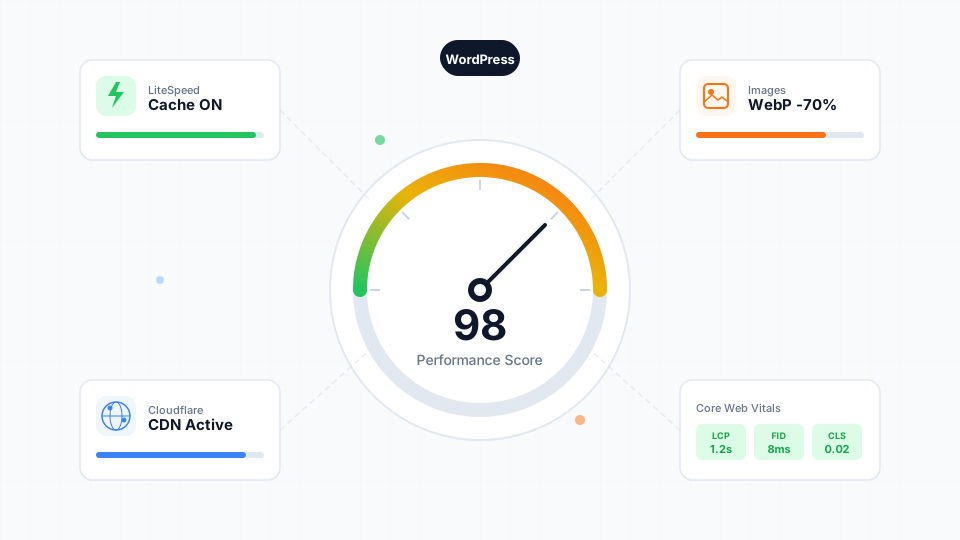
Recommended: LiteSpeed Cache (LSCache) — it's free, integrates directly with LiteSpeed servers, and handles page cache, browser cache, object cache, and image optimization all in one plugin.
Setup steps:
- Install "LiteSpeed Cache" from the WordPress plugin directory
- Go to LiteSpeed Cache → General and enable the cache
- Under Cache → Cache Control, enable "Cache Logged-in Users" only if your site doesn't show personalized content
- Under Page Optimization, enable CSS/JS minification and combination
3. Optimize Your Images
Images are typically 50–80% of a page's total weight. Unoptimized images are the #1 cause of slow WordPress sites.
Best practices:
- Use WebP format instead of JPEG/PNG (30–50% smaller)
- Resize images to their display dimensions (don't upload 4000px images for a 800px container)
- Enable lazy loading for below-the-fold images
- Use an image optimization plugin like ShortPixel or Imagify
Quick win: LiteSpeed Cache includes built-in image optimization. Go to LiteSpeed Cache → Image Optimization and click "Send Optimization Request."
4. Minimize Plugins
Every plugin adds PHP execution time, database queries, and CSS/JS files. Sites with 30+ active plugins commonly experience performance degradation.
Action plan:
- Go to Plugins → Installed Plugins
- Deactivate anything you don't actively use
- Delete deactivated plugins (they can still pose security risks)
- Use the Query Monitor plugin to identify the slowest plugins
- Replace multiple single-purpose plugins with all-in-one solutions
Target: Keep active plugins under 20 for most sites.
5. Use a CDN
A Content Delivery Network (CDN) distributes your website's static files across servers worldwide, serving them from the location closest to each visitor.
Recommended: Cloudflare (free tier) — it provides:
- Global CDN with 300+ edge locations
- Free SSL certificate
- DDoS protection
- Automatic image optimization (Polish)
- Brotli compression
Our hosting plans include easy Cloudflare integration through cPanel.
6. Optimize Your Database
Over time, WordPress databases accumulate overhead — post revisions, spam comments, transient options, and orphaned metadata.
Cleanup steps:
- Install WP-Optimize plugin
- Run "Clean all" to remove revisions, drafts, spam, and transients
- Optimize database tables
- Set up weekly automatic cleanups
- Limit post revisions by adding to
wp-config.php:
define('WPPOSTREVISIONS', 5);
7. Defer Non-Critical JavaScript
JavaScript that loads in the blocks page rendering. Most scripts don't need to run until after the page is visible.
In LiteSpeed Cache:
- Go to Page Optimization → JS Settings
- Enable "JS Defer" and "JS Delay"
- Add known-safe scripts to the delay list
Key scripts to defer:
- Analytics (Google Analytics, Meta Pixel)
- Chat widgets (Tawk.to, LiveChat)
- Social media embeds
- Marketing automation scripts
8. Choose a Lightweight Theme
Heavy themes with built-in page builders can add 500KB+ of CSS/JS to every page load.
Fast theme options:
- GeneratePress — under 30KB, highly customizable
- Astra — lightweight with starter templates
- Kadence — modern blocks, fast loading
- Flavor starter themes — minimal baseline themes for custom development
Avoid: Themes with 10+ bundled plugins, heavy demo content, and "everything included" marketing.
9. Enable GZIP/Brotli Compression
Compression reduces the size of files sent from your server to the visitor's browser, typically by 60–80%.
For LiteSpeed servers (like Cynet hosting):
Brotli compression is enabled by default. You can verify in Chrome DevTools → Network tab → check the "Content-Encoding" header for "br" (Brotli) or "gzip."
In .htaccess (if needed):
<IfModule mod_deflate.c>
    AddOutputFilterByType DEFLATE text/html text/css application/javascript application/json
</IfModule>
10. Monitor and Measure
You can't improve what you don't measure. Set up regular speed monitoring:
Free tools:
- Google PageSpeed Insights — tests Core Web Vitals (LCP, FID, CLS)
- GTmetrix — detailed waterfall analysis
- WebPageTest — advanced testing from multiple locations
- Chrome DevTools Lighthouse — built into your browser
Key metrics to track:
- Largest Contentful Paint (LCP) — aim for under 2.5 seconds
- First Input Delay (FID) — aim for under 100ms
- Cumulative Layout Shift (CLS) — aim for under 0.1
- Time to First Byte (TTFB) — aim for under 200ms
Schedule: Test your site monthly and after any major changes (theme updates, new plugins, content changes).
Quick Wins Checklist
If you're short on time, start with these five changes for the biggest impact:
- Switch to LiteSpeed hosting (if not already)
- Install and configure LiteSpeed Cache
- Compress all images to WebP
- Remove unused plugins (target: under 20)
- Enable Cloudflare CDN (free tier)
Need Help?
If you're running WordPress on Cynet hosting and need help with speed optimization, our support team can assist. Check our WordPress performance troubleshooting guide for step-by-step instructions, or contact our support team for hands-on help.